

Good to know
Discover digital business through easy purchase, management and monitoring
The registration process can start after the purchase or by clicking on the “apply” button inside the application.

Next step is to enter organization details, in organization details enter Tax number and click on the "Check" button to retrieve organization data. After check save organization info.
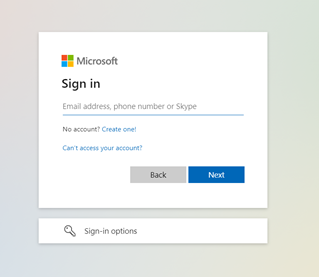
By clicking on the sign in in span.zone, the user will be redirected to choose between Microsoft or Google login.
After login, registration process starts where company details need to be enter like VAD ID and user details in order to create administrator on span.zone.
If the registration is done at the end of the purchase, further in this chapter you may find more details about the process.
After all the selected products have been added to the cart, it is necessary to click "login".

After that, the user must register company on span.zone. Before successful registration, the first condition is that the user has an existing Microsoft or Google account to login. In case user does not have Microsoft or Google account there is a wizard trough which new account can be created.
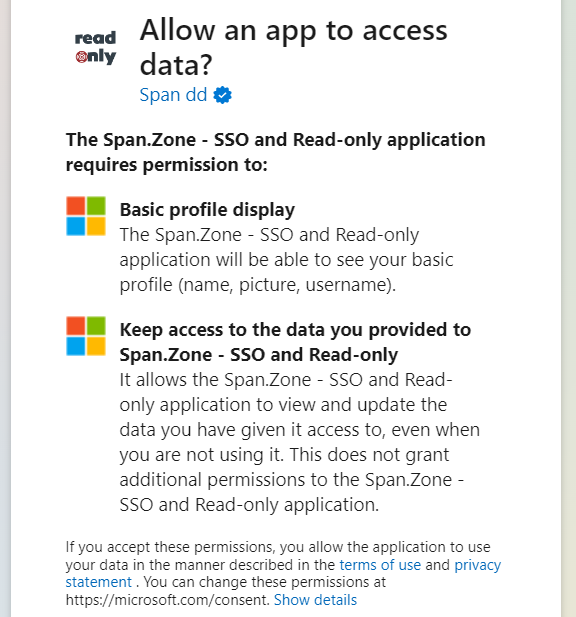
For the proper functioning of the application, it’s important to give access rights to information when login with Microsoft account.
After successful authentication, the user returns to span.zone. There will be a wizard for setting-up a span.zone administrator account and finish company registration.

Contact the Span Support via contact form on the app or write to support@span.eu.

The menu bar, in the right corner of the portal, allows easy access to various tasks that can be performed on the portal.
After login on the portal there is left side menu expands with more options such as: Administration, Learning zone, Dashboard, My company.

Before activating licenses or services, if you have registered for the first time on the span.zone platform, you need to add the statement of the authorized person and Microsoft tenant in the organization profile.


After uploading and verifying the statement, you will receive a confirmation notification. After that, you need to add a Microsoft tenant in order to activate Microsoft licenses.

If you do not have a Microsoft tenant, you can create one and complete the process of adding a tenant to the organizational profile. Later you can add a customized organization domain.

If you have an existing Microsoft tenant, select the "I already have a Microsoft tenant name" option and complete the tenant addition process.
A new user can be added by the administrator. By selecting the "Administration" module, you enter the administration, within which you need to select the users option.

Under Administration choose tab „Users“ and click on the button „Add user“.
Selecting "Add user" opens a module for adding a user, which must be filled in with the relevant data. After saving, the administrator who created the user will receive the data that needs to be forwarded to that user.

Depending on the user's position in the company, it is possible to assign a user role that has certain capabilities on the span.zone platform.
There are 3 user roles: Administrator, Billing Administrator and End-user.
Here's how each of these user roles can work.
Administrator
Access: Dashboard, Administration, Billing reports
Functionalities: Organization Administration, User Administration, Profile Administration, User Creation and Licence Assignment, Licence Management, Purchase of Services and Licences, Access to the Dashboard, Access to Billing reports
Billing Administrator
Access: Dashboard, Administration, Billing reports
Functionalities: Organization Administration, Profile Administration, Access to the Dashboard, Access to Billing reports
End-user
Access: Administration, Dashboard
Functionalities: Profile Administration, Access to Dashboard
If the user is successfully registered but did not purchase anything, it is important to complete company administration. Administator need to upload the "Authorized person statement" under company administration module and add Microsoft tenant.
After approval, purchase can be finished. User will after that get a confirmation email, and the receipt will be sent according to the arranged payment period.

Within the administration module, under the „Assets“, you can see an overview of all active licences. By selecting a licence, you can see all the details of the licences: number of active licences, number of available licences that you can assign to users, price, contract type. Licences can be increased at any time, after selecting the quantity, the process of ordering starts. Licences can be cancelled in a certain period, which is specified on the license administration itself. After selecting the quantity, the licence reduction process starts. After the successful increase or decrease of licences, the administrator receives an e-mail confirming the completed order.

Yearly payment - payment every month but the user is obliged to pay licence through the whole year.
Some services and licences do not have defined prices. Send a request for additional information. The inquiry can be sent directly through the contact form on the menu.

Also, if a price is not defined on a product, there is a form for sending price inquiries.

If a license needs to be assigned or removed from a user, it is necessary to enter the administration and select the user under the "Users" module.

After that, select the license you want to remove or assign to the user, then save the changes by clicking the "Save" button.
If the data is updated, and the change in the span zone is not visible even after the update, it is necessary to send an email to info@span.zone with the note 'Request for update'.
The dashboard displays content intended for specific user roles. According to the user role, it is divided into 3 parts: general view, M365 and Azure. The visibility of dashboard reports depends on the user role. To correctly load all data on the dashboard, it is necessary to give „consent“ to load all the information. Consent can be given by a global admin for a Microsoft account only once, and consent is given for M365 and for Azure (depending on what digital resources and services company has). After the global admin accepts the consent to display the dashboard, all other users within the company will have access to the dashboards (depending on which roles they have been assigned).